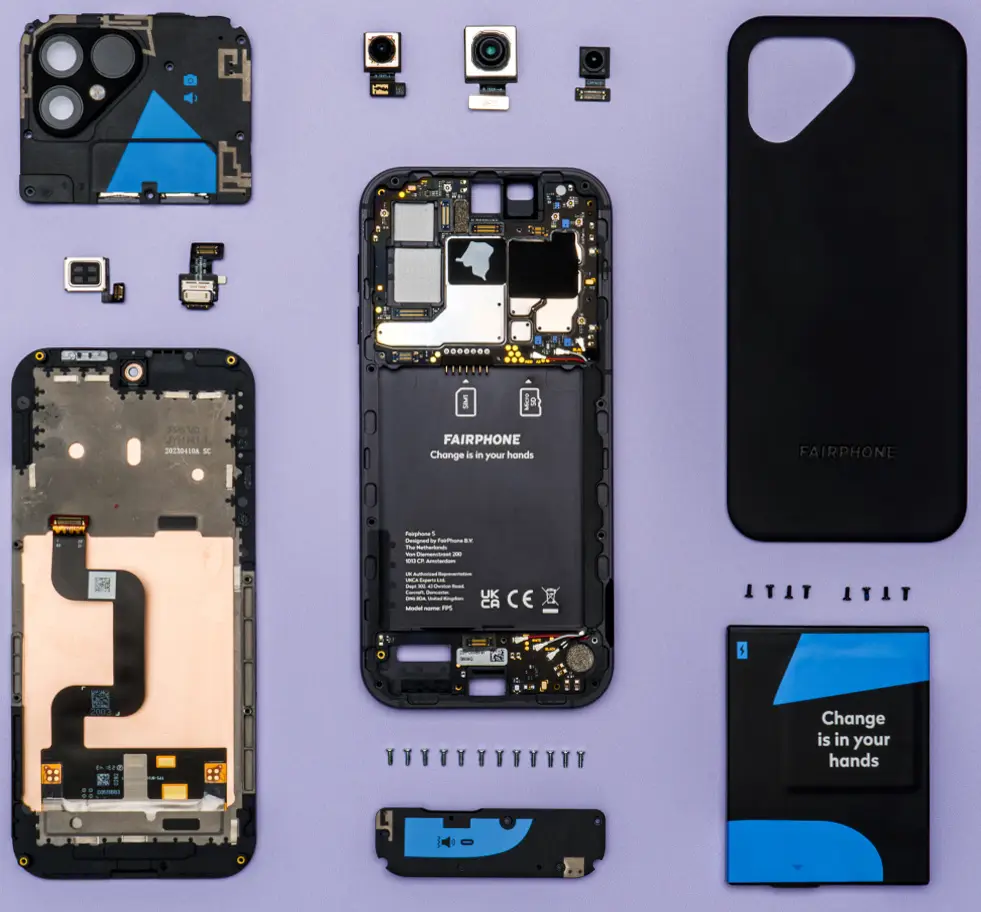
You've never heard of custom ROMs or you're considering switching to an alternative Android system. This article explains the three most important options in plain language, without assuming any technical background.
Why use an alternative operating system at all?
Android is open source — in theory. Over the years, however, Google has built in more and more proprietary components. The result: standard Android constantly sends data to Google's servers. According to a Cybernews investigation, a Pixel 9 Pro XL phones home every 15 minutes.
Alternative Android systems (often called custom ROMs) remove these Google components and replace them with privacy-friendly alternatives. The phone remains Android, but runs without constant surveillance.
Alternative Android systems are not a magic solution. Installation requires technical knowledge, some apps will no longer work, and the manufacturer's warranty is voided. In return, you get maximum control over your device and your data.
The three most important systems at a glance
GrapheneOS – Security at the highest level
GrapheneOS is a non-profit project that started in 2014 as CopperheadOS. The focus is on security and privacy through system hardening — the operating system is deliberately reinforced against attacks.
Google Pixel only — why?
GrapheneOS exclusively supports Google Pixel smartphones (Pixel 6 and later). There's a good reason for this: Pixel devices are the only Android phones that meet all hardware security requirements:
- Titan M/M2 chip: Hardware-based security for encryption and Verified Boot
- Re-lockable bootloader: After installation, the bootloader can be locked again — on other devices it remains open (a security risk)
- Long update guarantee: Google guarantees at least 7 years of updates for new Pixel devices
Special security features
GrapheneOS goes far beyond standard Android security:
Enhanced app isolation: Every app runs in a hardened sandbox. Even if an app is compromised, it cannot access other apps or system data.
Additional permissions: GrapheneOS adds new permissions that standard Android lacks. The Network Permission allows you to fully cut off any app from the internet. The Sensors Permission blocks access to the accelerometer, gyroscope, and compass — sensors that can be abused for device fingerprinting.
Secure App Spawning: Apps are launched in completely fresh processes rather than from pre-built templates. This increases security and closes known identification vulnerabilities.
Sandboxed Google Play Services
What makes GrapheneOS special: you can install Google Play Services — but differently from usual. Instead of running as a privileged system app, Play Services run as a normal user app inside a sandbox. They have no special privileges and cannot access data from other apps.
This works flawlessly for most apps: push notifications, in-app purchases, and Google Play Games all function. Many banking apps run without issues with Sandboxed Play Services — including Volksbank, PayPal, and Revolut. You don't necessarily need to install the Play Store itself; Sandboxed Play Services are often sufficient on their own.
User Profiles — the best of both worlds
GrapheneOS supports User Profiles — completely separate user environments on a single device. You can, for example, create a "banking profile" with Sandboxed Play Services while keeping your main profile entirely Google-free.
Practical example:
- Owner profile: Open-source apps only, no Google
- Banking profile: Sandboxed Play Services + banking apps
- Social media profile: Instagram, WhatsApp, etc.
Profiles are completely separated from one another — apps in one profile cannot access data from other profiles. You can switch between profiles in a few taps. Calls and SMS can be forwarded to all profiles.
- Highest security level of all custom ROMs
- Monthly security updates
- Bootloader can be re-locked
- Google Play optional and sandboxed
- User Profiles for complete data separation
- Many banking apps work (Volksbank, PayPal, Revolut)
- Very active development
- Detailed documentation
- Google Pixel devices only
- Installation is technically demanding
- Some banking apps do not work
- No microG support
- May feel too restrictive for some users
GrapheneOS is ideal if you own a Google Pixel (or are willing to buy one) and want maximum security. You should be prepared to invest time in the installation process and accept that some banking apps may not work.
Official website: grapheneos.org
Features overview: grapheneos.org/features
Installation: grapheneos.org/install/web
/e/OS – The Google-replacement ecosystem
/e/OS (pronounced "e OS") is developed by the non-profit e.foundation and commercially distributed through the company Murena. The philosophy: a complete ecosystem as a Google alternative — from the operating system to cloud services to pre-installed apps.
Murena: Buy a ready-to-go smartphone instead of installing yourself
The big advantage for beginners: Murena sells smartphones with /e/OS pre-installed. You can buy a Fairphone, a Murena SHIFTphone, or other devices that come ready with /e/OS — no installation required.
Alternatively, /e/OS can be installed on over 30 different smartphone models, including Samsung Galaxy, Google Pixel, OnePlus, and Xiaomi devices.
microG instead of Google Play Services
microG is an open-source reimplementation of Google Play Services. Apps that expect Google services usually work with it — but with significantly less data collection than the real Google Services.
What works: push notifications, location services (via Mozilla Location Services), most standard apps. What can be problematic: banking apps with strict security checks, some Google-owned apps.
The Murena ecosystem
/e/OS comes with a complete Google-replacement package:
- Murena Workspace: Email (@murena.io), calendar, contacts, cloud storage (1 GB free), online office suite
- App Lounge: Access to Play Store apps AND F-Droid apps in one application — without a Google account
- Advanced Privacy Widget: Real-time tracker blocking, IP hiding, fake location, weekly privacy reports
- Murena Find: Own search engine in "No Tracking" mode (powered by Qwant)
- Integrated ad blocker in the default browser
Advanced Privacy — the centrepiece
The Advanced Privacy Widget shows in real time which apps use trackers and blocks them. You can hide your IP address and feed apps a fake location. A weekly privacy report provides statistics on blocked trackers.
The App Lounge shows a "Privacy Score" for each app. This is based only on detected trackers, not on actual data collection. Facebook sometimes receives 9/10 points because it technically doesn't use classic trackers — a misleading rating. The /e/OS developers are working on improvements.
- Wide device support (30+ models)
- Very beginner-friendly
- Complete ecosystem (OS + cloud + apps)
- App Lounge combines Play Store + F-Droid
- Advanced Privacy is very user-friendly
- Murena sells ready-to-use devices
- Active community
- microG doesn't work with all apps
- Banking apps can be problematic
- Murena Cloud requires payment beyond 1 GB
- Occasional performance issues
- Privacy Score not always accurate
- Dependency on the Murena ecosystem
/e/OS is the best choice for beginners who want a complete out-of-the-box package. Especially recommended if you buy a Murena smartphone — then technical installation is skipped entirely.
Official website: e.foundation/e-os
Murena smartphones: murena.com/smartphones
Supported devices: doc.e.foundation/devices
LineageOS – The community classic
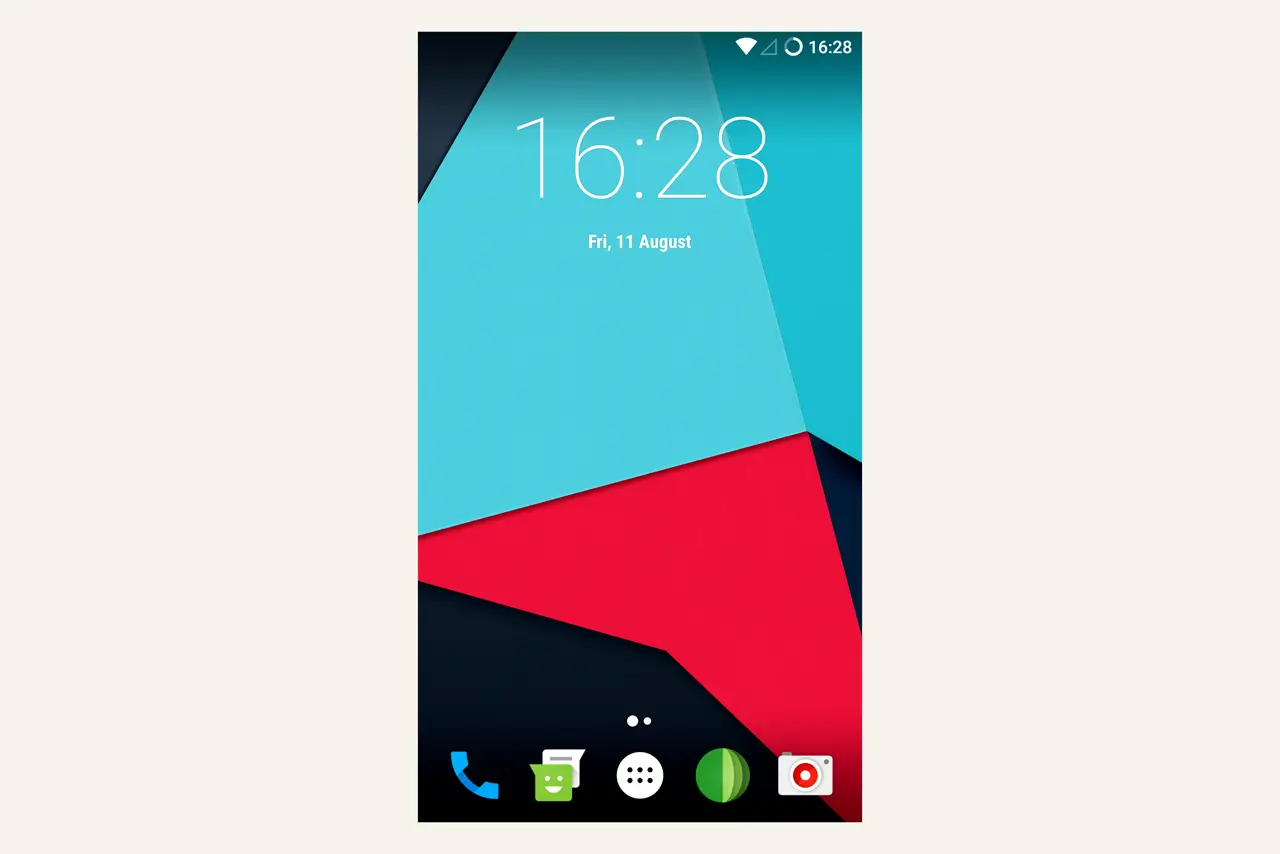
LineageOS is the successor to CyanogenMod, one of the most popular custom ROMs of all time. When CyanogenMod was discontinued in 2016, the developers forked the code and founded LineageOS. Today LineageOS has over 3.4 million active users.
The widest device selection
LineageOS supports over 230 different Android devices — from brand-new smartphones to older models long since abandoned by their manufacturers. Samsung, Google, OnePlus, Motorola, Xiaomi, Sony, LG, Fairphone — the list is long.
This makes LineageOS the ideal solution for reviving old smartphones or for devices supported by neither GrapheneOS nor /e/OS.
Vanilla AOSP without pre-installations
By default, LineageOS installs no Google Services and no microG. The system is "vanilla" — very close to the original Android Open Source Project. You decide yourself whether to install GApps, microG, or nothing at all.
This gives maximum control, but also means: you have to manage app sourcing yourself.
LineageOS for microG
There is an official microG variant: LineageOS for microG. This version comes with pre-installed and configured microG as well as F-Droid. The technically demanding Signature Spoofing configuration is already taken care of.
For beginners, LineageOS for microG is significantly easier than standard LineageOS.
Community-driven
LineageOS is developed by a worldwide community of volunteers. That means: active forums, plenty of guides, quick help when things go wrong — but also that some devices are better supported than others.
- Widest device selection of all custom ROMs
- Very active community
- Stable builds
- Extends the life of older devices
- Monthly security updates
- Foundation for many other ROMs
- microG variant available
- No Google Services pre-installed
- microG installation is complex
- Less security hardening than GrapheneOS
- Bootloader remains unlocked
- Banking apps can cause issues
- No official manufacturer support
LineageOS is ideal for tech enthusiasts with devices outside the Pixel or Murena range. Also perfect for breathing new life into old smartphones. Choose LineageOS for microG if you're a beginner.
Official website: lineageos.org
LineageOS for microG: lineage.microg.org
Supported devices: wiki.lineageos.org/devices
App stores: Where do you get apps?
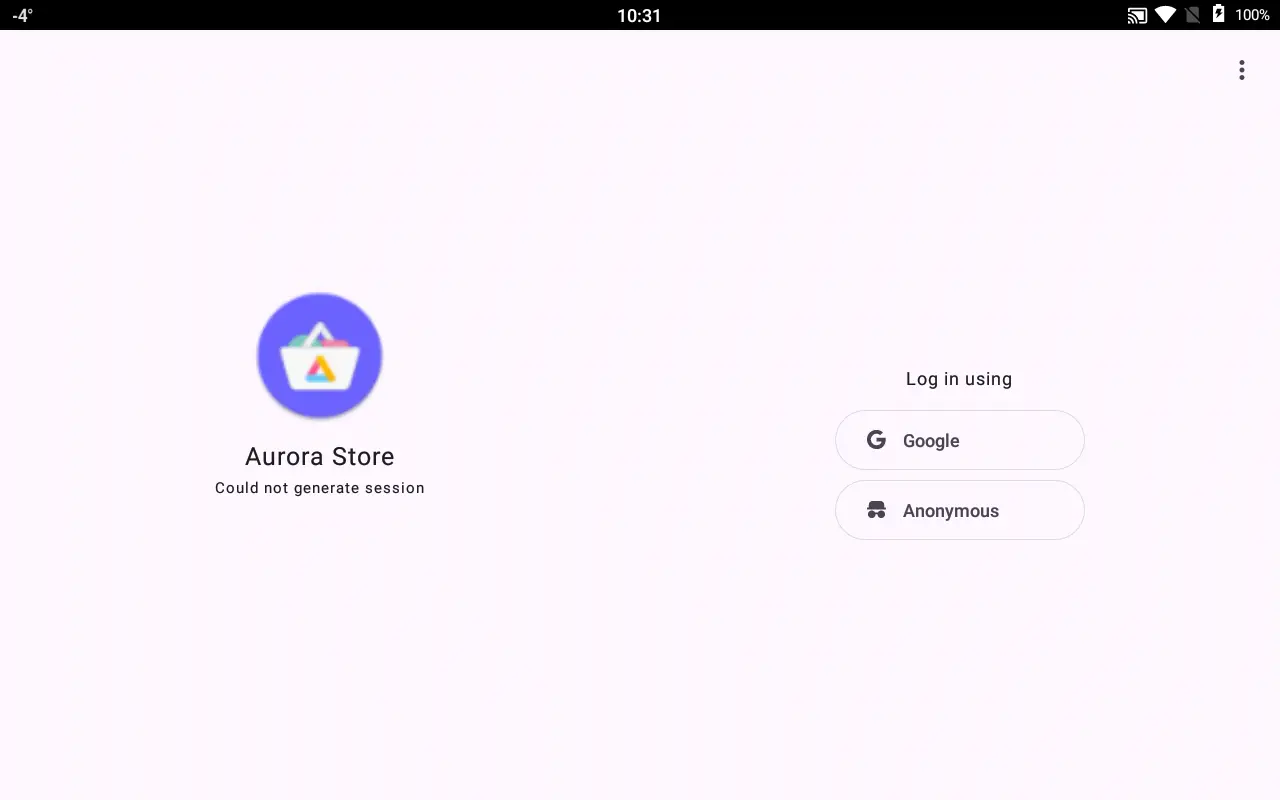
Without the Google Play Store, you need alternative sources for apps. The two most important: F-Droid for open-source apps and Aurora Store for anonymous Play Store access.
F-Droid – The open-source app store
F-Droid is a catalogue of Free and Open Source Software (FOSS). Over 4,000 apps, all open-source, all tracker-free, all free of charge. No account needed, no advertising.
F-Droid transparently shows which permissions an app requires and whether trackers are included. Apps are reviewed by the community and compiled from source code — you know exactly what you're installing.
Popular apps on F-Droid:
- NewPipe: YouTube without ads, with background playback and downloads
- Aegis Authenticator: Secure 2FA app with encrypted backups
- OsmAnd~: Offline navigation with OpenStreetMap maps
- Signal: End-to-end encrypted messenger
- K-9 Mail: Powerful email client
- Simple Mobile Tools: Suite with calendar, gallery, notes, etc.
Installation: Download the F-Droid APK from f-droid.org, allow "Install from unknown sources", then install.
Aurora Store – Anonymous Play Store access
Aurora Store is an unofficial, open-source client for the Google Play Store. It enables downloading Play Store apps without a Google account.
Aurora generates anonymous throwaway accounts and downloads apps directly from Google's servers — the same original APKs as in the Play Store. You can also use your own Google account if you want to access purchased apps.
Additional features:
- Exodus Privacy integration: Shows trackers in apps before you install them
- Plexus database: Shows whether apps work with microG
- Device spoofing: Identify your device as a different model to install geo-restricted apps
- Older versions: Download previous app versions
Installation: Install Aurora Store via F-Droid: f-droid.org/packages/com.aurora.store
Google occasionally blocks the anonymous accounts generated by Aurora. Simply have Aurora generate a new account. This is normal and not a problem.
APK installation – The manual method
APK files are Android installation packages — like .exe files on Windows. Many developers offer their apps directly as APK downloads.
Trustworthy sources for APKs:
- APKMirror: apkmirror.com (original APKs only, no modifications)
- F-Droid: f-droid.org
- GitHub Releases of open-source projects
- Official developer websites
Installation: Download the APK, allow "Install from unknown sources", tap the file, install.
APKs can contain malware. Only download from trustworthy sources. Avoid random websites offering "premium" apps for free — these are almost always tampered APKs containing malicious code.
Banking apps and app compatibility
The honest truth: some apps don't work on custom ROMs. The biggest issue is banking apps.
The SafetyNet / Play Integrity problem
Google offers app developers APIs called SafetyNet (deprecated) and Play Integrity (current), which check whether a device has been tampered with. The checks look for:
- Is the bootloader unlocked?
- Is a custom ROM running?
- Is the device rooted?
- Do the system signatures match?
Most custom ROMs fail these checks. Apps that use Play Integrity will then refuse to function.
Which apps are affected?
Potentially problematic apps:
- Banking apps: Sparkasse, Volksbank, N26, DKB — highly variable. Some work, some don't.
- Payment apps: Google Wallet often doesn't work. PayPal usually does.
- Streaming: Netflix can have issues (DRM checks). Spotify usually fine.
- PhotoTAN apps and other banking security tools
Apps that normally work:
- WhatsApp (requires Play Services or microG)
- Signal (works completely without Google)
- Telegram
- Most social media apps
- Browsers, email apps, navigation
- Most games
Solutions for banking apps
Option 1: GrapheneOS with Sandboxed Play Services
GrapheneOS gives the best chances of banking apps working. Many apps run flawlessly with Sandboxed Play Services — including Volksbank, PayPal, and Revolut. With a re-locked bootloader, GrapheneOS can even pass Play Integrity checks. The Play Store itself is not required for most banking apps — Sandboxed Play Services alone are sufficient.
Use User Profiles: banking apps in a separate profile, main profile stays Google-free.
Option 2: Online banking in the browser
Most banks have good web apps. This always works and is the simplest compromise.
Option 3: Second device
Keep an old smartphone with stock Android just for banking apps. Everything else runs on the custom ROM.
Option 4: Magisk modules (for technical users)
With root and Magisk modules like "Play Integrity Fix", Google's checks can sometimes be circumvented. This is a technical cat-and-mouse game and not for beginners.
Before converting your main device: check in the Plexus database (plexus.techlore.tech) whether your most important apps work with microG. For GrapheneOS, an app compatibility list is available in the official forum.
Installation – an overview
Installing a custom ROM is a multi-step process. Here's the rough outline — detailed guides are available on the official websites.
General process
1. Preparation
- Back up all data (unlocking the bootloader erases EVERYTHING)
- Charge the battery to at least 70%
- Enable USB debugging and OEM unlocking in Developer Options
2. Unlock the bootloader
- Device-specific process
- Some manufacturers require an unlock code requested online (Xiaomi, OnePlus)
- Google Pixel: simple Fastboot command
- Erases all data
- Voids warranty
3. Install custom recovery (usually required)
- TWRP (Team Win Recovery Project) is the most popular
- GrapheneOS: own web installer, no recovery needed
4. Flash the ROM
- Copy the ROM file to the device
- Boot into recovery
- Perform a "wipe" (system, cache, data)
- Flash the ROM ZIP
- Optional: flash GApps or microG
- Reboot
5. Setup
- First boot takes 5–10 minutes
- Set up the system
- Install apps (F-Droid, Aurora Store)
Links to official installation guides
GrapheneOS:
Web installer (recommended)
CLI installation (for advanced users)
/e/OS:
Easy Installer (for supported devices)
Manual installation (device-specific)
LineageOS:
Installation wiki
Device-specific guides
Warranty void: Installing a custom ROM voids the manufacturer's warranty.
Data loss: Unlocking the bootloader permanently erases ALL data.
Brick risk: Errors during installation can render the device unusable ("brick").
Time investment: First installation takes 2–4 hours (including reading the documentation).
Comparison: Which system for whom?
| Criterion | GrapheneOS | /e/OS | LineageOS |
|---|---|---|---|
| Device support | Google Pixel only | 30+ devices | 230+ devices |
| Security | Highest | High | Medium |
| Privacy | Maximum | Maximum | High |
| Beginner-friendliness | Medium | Very high | Medium |
| App compatibility | High (with Play) | Medium (microG) | Medium |
| Google Services | Optional (sandboxed) | microG (pre-installed) | None (manual) |
| Banking apps | Usually | Partially | Partially |
| Bootloader | Can be re-locked | Remains open | Remains open |
| Updates | Monthly | Monthly | Monthly |
| Cloud services | None | Murena Workspace | None |
| Cost | Free | Free (cloud paid beyond 1 GB) | Free |
| Ideal for... | Security-conscious Pixel users | Beginners, complete package | Tech enthusiasts, older devices |
Decision guide
Choose GrapheneOS if:
- You have a Google Pixel (or are willing to buy one)
- Maximum security is your top priority
- You need banking apps that check Play Integrity
- You're willing to invest time in the installation
Choose /e/OS if:
- You want a complete ecosystem as a Google replacement
- You're a beginner and want to keep things simple
- You want to buy a Murena smartphone (pre-installed and ready to go)
- Cloud services (email, calendar, storage) are important to you
Choose LineageOS if:
- Your device is supported by neither GrapheneOS nor /e/OS
- You want to revive an old smartphone
- You're tech-savvy and want maximum control
- Banking apps are not a concern for you
Conclusion
Alternative Android operating systems are not the right solution for everyone. They require technical knowledge, don't work with all apps, and void the warranty. In return, you get maximum control over your device and your data.
GrapheneOS offers the highest security for Google Pixel users. /e/OS is the most beginner-friendly system with a complete Google-replacement ecosystem. LineageOS supports the most devices and extends the lifespan of older smartphones.
All three systems share one thing: they end permanent Google surveillance and give you back control. Whether that trade-off is worth it is for you to decide.
Visit the official websites, read the documentation, and check whether your device is supported. Back up your data, set aside a weekend for the installation — and take the plunge.